Managing my listings
-large.jpg)
Post a listing on BikUp
Posting a listing on BikUp is completely free.
You can publish as many listings as you like, at no cost.
Conditions for publishing a listing
To post a listing on BikUp, two conditions must be met:
- the listing must be for a bike or a bike accessory and comply with the General Terms of Use
- if you're a professional rental company, you'll need to provide an invoice at the end of each rental
Types of listings accepted
You can publish listings for bikes or bike-related equipment, in compliance with the platform's terms of use.
Create a listing
To post a listing, log in to your account and go to: https://bikup.app/en/listings/create
You'll be guided step by step. You'll be asked for:
- general information about the listing
- additional details with a title and a description
- the address of the listing (this is not publicly visible and is only used for display on the map)
- at least one photo of the bike. If you add several photos, you can choose the cover photo
-large.jpg)
- the rental price and the deposit amount
Listing visibility and ranking
Listings are displayed and ranked according to several criteria:
- the distance from the area searched
- the quality of the content (title and description) and of the photos
- the owner's responsiveness and reliability (response rate and decline rate)
- reviews left by renters
To maximise your chances of getting bookings, you can for example:
- write a clear and detailed description
- add good-quality photos
Detailed tips are available here.
Promote your listing
A well-written, well-illustrated listing appears more often in the top search results.
We recommend that you:
- take care with the bike's description
- add several sharp, representative photos
More tips are available here.
Edit an existing listing
To edit a listing, log in to your account, go to https://bikup.app/en/dashboard/listings and select the listing concerned. You can edit all the information from the various tabs.
-large.jpg)
Edit a listing's photos
From your dashboard, go to your listings, select the one to edit and then go to the Photos tab to add, delete or reorder images.
Set the booking settings
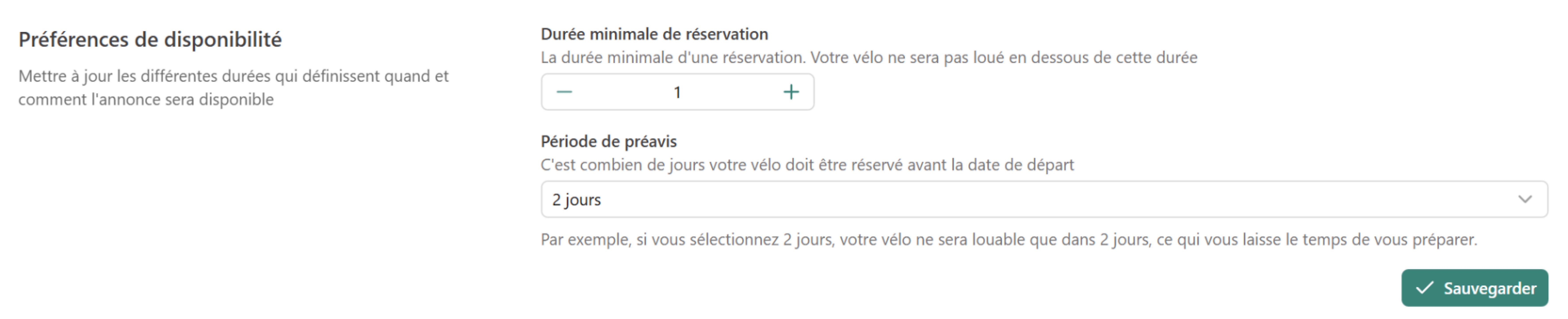
From your listing's Preferences tab, you can set:
- availability preferences
- minimum booking period
- notice period before booking
- discounts
- discount for rentals of more than 7 days
- discount for rentals of more than 30 days

- cancellation options
As an owner, you can choose between several cancellation policies for your listing.
Flexible
The renter can cancel up to the day before departure. They will then be refunded the rental amount, excluding BikUp service fees.
Zen
The renter can cancel 3 days or more before the start of the rental, you will be compensated 30% of the amount you would have received. If you cancel less than 3 days before the start of the rental, no refund will be possible.
Moderate
The renter can cancel 10 days or more before the start of the rental, you will be compensated 30% of the amount you would have received. If you cancel less than 10 days before the start of the rental, no refund will be possible.
Strict
If the renter cancels, no refund will be possible. You will therefore receive 100% of the rental amount.
The “Zen” policy is the default option on BikUp.
Pause a listing
You can pause a listing at any time, for example if it's temporarily unavailable.
The listing will then no longer appear in search results.
Delete a listing
If you want to permanently delete a listing, go to https://bikup.app/en/dashboard/listings and select the listing concerned.
Set the deposit amount
The deposit is freely set by the owner and usually takes the form of an uncashed cheque.
In the meantime, we recommend looking at similar listings.
Deposits that are too high can put off bookings.
Half-day rental
Half-day rental is not yet available on BikUp.